
 by
by Summary Box: If your Phone Storage Full warning keeps appearing, you can recover space without deleting everything important. This guide covers seven practical cleanup methods, including junk files, duplicate photos, large videos, unused apps, and WhatsApp media.
Why Does Your Phone Storage Get Full?
A Phone Storage Full warning usually appears when photos, videos, downloaded files, app data, and messaging media gradually consume your internal storage. Large videos can take up several gigabytes, while duplicate images, screenshots, downloads, and files received through chat apps can quietly accumulate over time.
Before deleting anything, check which category is using the most space. On Android, Files by Google can show available storage and help identify large files and other items that may be removed. The app currently supports Android 8.0 and newer.
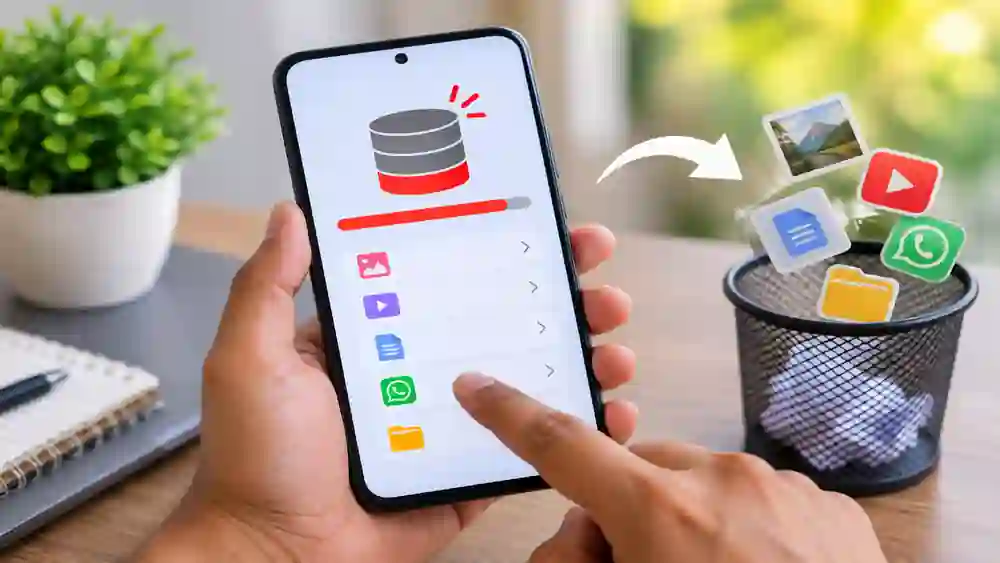
Phone Storage Full? Try These 7 Methods
1. Remove Junk Files
Temporary files can occupy storage without providing much value. Open Files by Google → Clean → Junk files, review the suggested items, and confirm the deletion. Google notes that files removed through this cleanup can be permanently deleted, so review the selection before confirming.
2. Delete Duplicate Photos
Duplicate pictures are an easy place to recover space, especially if you frequently download or receive the same images. Files by Google provides a duplicate-file cleanup option, allowing you to review suggested duplicates before removing unnecessary copies.
3. Find Large Videos and Files
Videos, movies, screen recordings, and downloaded documents can consume storage quickly. Sort files by size and check the largest items first. Keep important files, then move selected content to an SD card or another storage location instead of deleting it permanently.
Table of Contents
4. Clean Old Screenshots
Screenshots often remain forgotten after they have served their purpose. Files by Google can identify older screenshots and let you select which ones to move to the Trash. This is especially useful if your gallery contains many temporary screenshots.
5. Remove Unused Apps
Apps that you no longer use can occupy considerable storage, particularly when they keep downloaded content and cached data. Files by Google has a feature for finding unused apps; after enabling the required usage access, you can select apps and uninstall them.
6. Check WhatsApp Media
WhatsApp images, videos, documents, and forwarded files can build up quickly. Review large or unnecessary WhatsApp media and delete files you no longer need. Files by Google also provides a dedicated cleanup option for WhatsApp media.
7. Back Up Important Photos and Files
Instead of keeping every large file on your phone, back up important content and then remove local copies when appropriate. Files by Google supports moving files to Google Drive or an SD card to help save device storage.
How to Free Space Using Files by Google
For a quick cleanup, install Files by Google from the official Google Play Store. Open the app and check the storage information, then use the Clean section to review junk files, duplicate files, old screenshots, large items, and other recommendations. You can also browse files manually and sort them by size before deciding what to remove.
Do not automatically delete everything suggested by a cleaner. Personal photos, documents, downloaded certificates, and important WhatsApp files may be included in cleanup recommendations. Review each group carefully and keep a backup of anything you may need later.
Frequently Asked Questions
How can I free up phone storage quickly?
Start with large videos, duplicate photos, downloads, WhatsApp media, unused apps, and junk files. These categories can often provide noticeable space savings.
Is Files by Google free?
Yes. The official Google Play listing currently describes Files by Google as a free app and says it has no ads.
Can I delete cache to free space?
Some apps store temporary cache files that can be cleared. However, avoid using Clear Storage/Data unless you understand its effect because it can remove an app’s stored data.
Can I move files instead of deleting them?
Yes. Files by Google supports moving or copying files to an SD card and backing up files to Google Drive or other available cloud-storage apps.
Conclusion
When your Phone Storage Full warning appears, you do not necessarily need to delete your important memories or documents. Start by identifying large files, removing unnecessary duplicates and junk, cleaning old screenshots and WhatsApp media, uninstalling unused apps, and backing up files that you want to keep.
Internal Link Suggestion:
Cleaner for WhatsApp:
Official External Link(s):
Files by Google – Official Google Play
Files by Google Help – Official Google Support