 by
by Summary Box: WhatsApp DP Crop helps you prepare photos that fit neatly into your WhatsApp profile picture. This guide explains how to crop, resize, position, and improve your photo so important parts are not cut off.
What Is WhatsApp DP Crop?
WhatsApp DP Crop is the process of preparing a photo to look properly inside WhatsApp’s profile-picture frame. Many photos are taken in portrait or landscape format, while a profile picture works best when the main subject is positioned carefully within a compact frame. This becomes especially important with full-body photos, family pictures, or images where the person’s face is close to an edge.
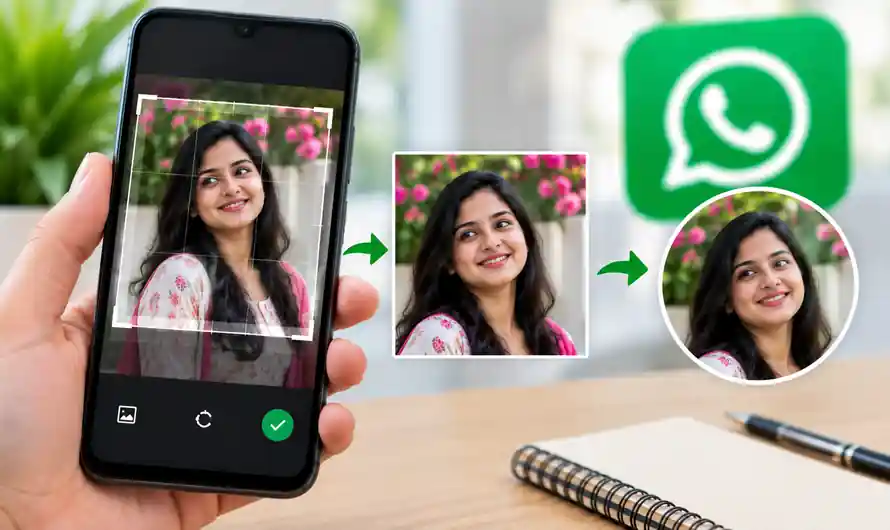
Instead of repeatedly zooming and moving the same picture inside WhatsApp, you can prepare the image beforehand. A good crop keeps the face or main subject clearly visible, leaves some breathing space around it, and avoids placing important details too close to the boundaries. This simple preparation can make the final DP look much cleaner.
WhatsApp DP Crop for Different Types of Photos
The ideal crop depends on the picture you want to use. For a close-up selfie, keep the face near the centre and avoid cutting the top of the head or chin. For a full-body image, use a wider composition with extra space around the person. Group photos need even more care because every person should remain inside the visible area.
If the original image is very wide or tall, first create a square version using your phone’s built-in photo editor. You can then adjust the position and scale before uploading it. Keeping the important subject away from the extreme edges gives you more flexibility when WhatsApp displays the final profile picture.
Table of Contents
How to Make a WhatsApp DP Without Cutting the Photo
1. Select a High-Quality Picture
Choose the original image rather than a screenshot or heavily compressed copy. A clear source photo gives you better results after cropping and resizing.
2. Create a Square Composition
Open the photo in your phone’s editing tool and select a square crop if available. Move the crop area until the person or main object is comfortably inside the frame.
3. Reduce the Subject Size
If your face or body is too close to the edges, zoom out slightly before saving. Extra background space can help preserve more of the person when the image is displayed as a profile picture.
4. Check the Important Details
Look at the hair, face, shoulders, clothing, and other elements you want visible. If anything important touches the boundary, reposition the picture and create a little more space.
5. Upload the Prepared Image
Open WhatsApp, go to your profile, select your profile picture, and choose the edited image. Adjust its position using the available preview controls before confirming the change. WhatsApp provides official profile-photo editing options for changing your picture.
6. Check the Final Appearance
After saving, view your profile picture normally rather than judging it only from the editing screen. If the framing does not look right, edit the original image again and upload the improved version.
WhatsApp DP Crop Tips for Better Quality
Avoid stretching a small image to make it larger because this can make faces look soft or pixelated. Keep the subject well lit and use a simple background when possible. A centred face with enough surrounding space usually works better than an extremely tight crop.
You can also review your WhatsApp privacy settings before changing your picture. WhatsApp provides controls for deciding who can see your profile photo, so your preferred image can be shared with the audience you choose.
Frequently Asked Questions
Can I crop my WhatsApp DP on my phone?
Yes. You can use your phone’s built-in photo editor or another image-editing tool to prepare the picture before uploading it.
Why does WhatsApp cut part of my photo?
Photos with unusual proportions or subjects positioned near the edges may require adjustment to fit the profile-picture frame.
How do I show more of a full-body photo?
Use a wider original photo and leave more empty space around the person before creating the final crop.
Can I change my WhatsApp profile picture again?
Yes. You can return to your profile settings and replace the existing photo with another image.
Conclusion
A properly prepared WhatsApp DP Crop can make your profile photo look more balanced and professional. Choose a clear image, keep the main subject centred, leave enough surrounding space, and check the final preview before saving.
Internal Link Suggestion:
Smart Ration Card Download Kerala
Official External Link(s):
WhatsApp Help Center – Profile Photo
WhatsApp Help Center – Privacy Settings